Posts

Showing posts with the label Apple

Adding Closed Captions to Facebook Movies

Image
Did you know that Facebook supports closed captioning? Here's how to do it. First, you will need to create your captions using MovieCaptioner or some other software. Export as SRT, the same caption format that YouTube uses. Once you have your caption file ready, upload your movie to Facebook by clicking the Add Photos/Video link on your status. Click the blue Post button. Your video will begin to upload. After your video is done uploading, you should get a "Processing" alert that will give you the option to Edit your movie. Click the Edit Video button. It will take you to this page where you can set the description, privacy, date, and other information associated with your video. If you didn't see the Processing alert, you can always click the Options menu on your video's page and select Edit this video from there. Scroll down to where it says Captions on the Edit page. Note the naming convention you'll need to use for your SRT file...
Extracting QT Text Tracks From Movies to Create Different Caption Formats

Image
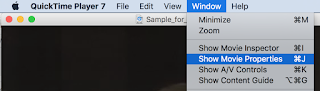
Do you have a QuickTime movie that has a text track, but you need to somehow get the captions out to create another format, such as SRT for YouTube or SCC for broadcast TV or iOS devices? Today's your lucky day. I'll show you how easy it is to repurpose QT Text tracks from movies. First of all, you'll need QuickTime Pro, which is a $30 upgrade to the QuickTime 7 Player from Apple. Open your movie that has the text tracks in it and go to the Window menu and select Show Movie Properties. In the Movie Properties window, select your text track (this one has 2 - one is French and one is English) and then click the Extract button. It will extract the text track into a new movie. Kind of weird to have a movie that is nothing but text, but that's okay. Now we're going to export this movie from QuickTime Pro. Choose Text to Text from the pulldown menu. I've named the new file "french.txt". Once it exports, you'll h...

Creating Video Captions with Asian and Other Accented Characters

Image
A common problem with creating captions for video is when you run into non-Enlish characters. Asian characters and European accented characters can present special problems for captioning. People will often create QT Text files with these characters... ...and find out they look like gibberish when they view them embedded into their movies. What's the answer? MovieCaptioner tackles this problem by using TeXML files instead of QT Text files to embed captions into a movie. The XML file it creates will support many characters. You can import a Chinese transcript into MovieCaptioner, for example, but you must prepare the file first. Let's say you have a Chinese transcript in Microsoft Word... (Thanks to William Roth, Broadcast Operations Engineer at the Cleveland Clinic for providing this sample transcript.) Don't try to directly import a MS Word document or and RTF file. First, save it as a new "Plain Text" file. After selecting Plain Text and giving...

Captioning Recorded Adobe Connect Meetings

Image
If you need to caption Adobe Connect meetings that have already been recorded, there is an easy way. First, download these template files . The files contain an instructional PDF with screenshots showing you how to download your recorded meeting, how to caption it using MovieCaptioner , and how to make the captions work. The process is simply this: Download your Adobe Connect recording and name it "main.flv" (case sensitive). Load the movie into MovieCaptioner and create the captions. Export the captions as Flash (DFXP) caption file naming it "captions.xml" (the default name from MovieCaptioner for Flash captions). Copy the template folder and name it what you want. Drop the "main.flv" and "captions.xml" files in the folder, replacing the 2 files with the same name in the template folder. Launch the "index.html" file in the folder to check your work. Upload the whole folder to your Web space and link to the "index.html...

Free Refills!

Don't you really like it when you go to a restaurant and there's a sign that says "Free Refills" on your drink? Well, I know a lot of people think I'm crazy, but that's my philosophy when someone purchases my software. Once you buy, you're in the club. You get free upgrades for as long as I continue to offer the software. Isn't that the way it should be? Why do software companies charge a premium for new versions of their software when often it's just a bunch of bug fixes anyway? Why should I have to pay for someone to fix what they should have gotten right in the first place? The way I feel is that free upgrades are a nod to my previous customers, a way of saying "thanks!" for supporting the software early on and helping me to improve it. When MovieCaptioner was first released a few years ago it had its share of major bugs, and being new to the software arena, I knew that I had to make up for my lack of programming ability by always stri...

One Q to Rule Them All

Although I'm very grateful to Apple for their support of captions and accessibility in general, I do think that QuickTime needs some attention. With Snow Leopard, a new QT Player is automatically installed, called Quicktime X. Although QuickTime X has some nice features, like being able to record screen action, it has a number of faults as well. As soon as Snow Leopard was released, I found that my s/w for adding captions to movies, MovieCaptioner , was broken and I had to scramble to fix it. It turns out that QuickTime X does not have the same editing features as QuickTime 7 Pro, which I was leveraging for my s/w. QuickTime X cannot import text tracks, so in order to do so, you need to get your Snow Leopard install disk and do a custom install of QuickTime 7, then register it as the Pro version. Okay, so if you get QuickTime 7 Pro installed, you're back in business. But there are some other issues I'd like Apple to address in QuickTime as well. 1. Support for QuickTime spr...